
Parenting Tips
How to Choose Coloring Apps for an iPad or Android Tablet
The best coloring apps for an iPad are the ones your child can open, use and finish on their own, and the tablet settings behind them are what make that possible.

When you search for the best coloring apps for an iPad or an Android tablet, most of what comes back is a ranking: five apps, five logos, a paragraph each. That is a hard way to choose, because the app that suits your child depends on the tablet in their hands, the settings around it and the way they hold it. This is a guide for judging a coloring app on a tablet, not a list of names.
A parent can answer most of these questions in a few minutes, at the kitchen table, with the child nearby. You do not need a comparison chart, just to know what to look at, and then look.
Why the tablet changes the question
A coloring app on a phone and the same app on a tablet are two different experiences, and the tablet is the harder one to get right.
On a tablet, the screen is bigger and the drawing area is wider, which a coloring page usually likes: the whole picture sits in view and a child can reach the corners without a hand covering the part they are working on. The catch is that a bigger screen also spreads the controls apart. A color palette that sits comfortably under a thumb on a phone can leave a child stretching across ten inches of glass to pick a red, and a small child holding a tablet on their lap reaches the middle of the screen far more easily than the corners.
So a page that works well on a phone is not automatically one to hand over on a tablet. The layout has to suit the device it runs on, and that difference is worth checking before anything else.
What to look at first on the screen
The single most useful thing to watch is your child's hands.
Are they hitting what they aim at? A young child's finger is small and imprecise, and a control they miss and miss keeps breaking the activity. Look for colors and buttons that are chunky, spaced apart and clearly drawn, so a wandering finger still lands on what it meant to press. If your child keeps opening a menu they never wanted, that is the app telling you its touch targets are too fine for the hands holding it.
Watch where their hand sits on the glass as they color. If they rest their whole palm on the screen and it picks up stray strokes, the app is not handling how a child holds a tablet, and the page fills with marks nobody made. A child leaning on the screen is not doing it wrong; the app is.
Then check what is on the screen at once. A child who sees one page and three colors has a simple job. A child who sees many icons and elements competing for attention has a different one, more like navigating than coloring. The setting you want keeps a child pointed at the drawing rather than at everything around it.
Offline coloring apps and what the app asks for
Offline play is the feature parents ask about most, and it is the easiest one to test.
Download everything with the internet on, then switch the Wi-Fi and the mobile data off, and open the app again. If the pages your child already has are still there with no connection, the app genuinely works offline, and it turns a tablet into a reliable quiet option in a car, on a plane or in a waiting room, wherever the signal is not. If it goes looking for a server, or greys out the pages and shows you a spinner, you have your answer before the trip rather than on it.
The other half of the question is what the app asks of you. Does it want an account before a child can color? Does it interrupt the activity with a request to rate or to connect something? Does it put a prompt where a small finger is about to land? A coloring app should open onto the drawing, and everything else should sit behind a place an adult can reach and a child cannot. The apps that respect the activity keep the interruptions out of the child's way.
One caution while you judge. A store page is a description, not the proof. Ten minutes with the tablet in your own hands, with the connection off, tells you more than any listing.
Tablet settings a parent can check
A little time in your device settings can make a coloring app easier for a small child on any platform.
- Airplane mode for the test. Download the pages first, then switch airplane mode on and open the app, which is the only honest way to prove offline play.
- Guided Access on an iPad, or screen pinning on an Android tablet, keeps a child inside one app so a stray swipe does not carry them out into the rest of the tablet.
- Check what sits around the app. Know what an accidental swipe off the top or bottom edge will open, and decide whether a small child can reach it while coloring.
- Set the brightness and the volume before the tablet changes hands, so the activity starts in the state you chose.
- Keep the tablet flat or propped rather than held up in small hands, because a child steadying a tablet one-handed is not steadying the drawing.
These are platform habits rather than anything one app controls, and they are the same whether your child is on an iPad or an Android tablet, under a different name.
How a young child holds and uses a tablet
One more thing is worth watching, and it is mostly about posture.
A small child on a couch often rests a tablet across their knees, which leaves both hands ready for the page and is the setup most pages are drawn for. A child holding a tablet upright in two hands is working harder than they need to, and the wobble shows up as broken lines and losses of interest. When coloring keeps ending in frustration, the fix is sometimes not the app but the angle.
Coloring on glass is also a different motion from coloring on paper. There is no drag from a crayon, no texture under the tip, and a stroke goes exactly where the finger goes with nothing to steady it. That does not make it worse, and it does not make it better; it is a different motion, and some children settle into it faster than others.
If you are working out whether your child is ready for a first tablet session at all, the readiness signs rather than a birthday are the thing to watch, which our guide on what age can toddlers use coloring apps covers. For the wider system of checks behind a first app, our piece on how to choose safe screen time apps for toddlers goes through the whole list in order, and educational coloring apps for kids looks at the same decision from the content and age side rather than the device.
How Bumi Lumi fits a tablet
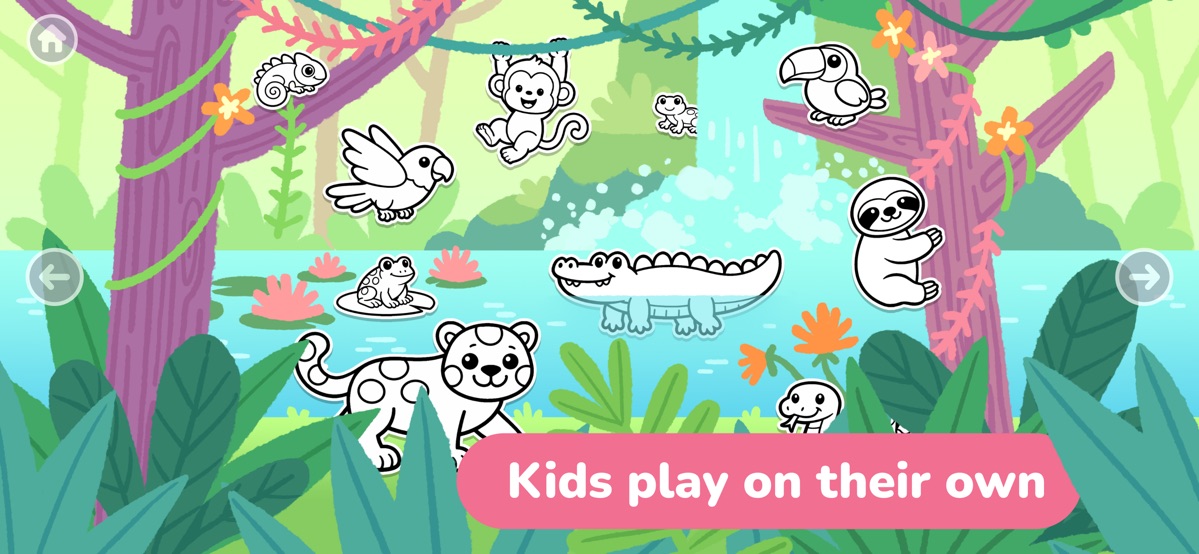
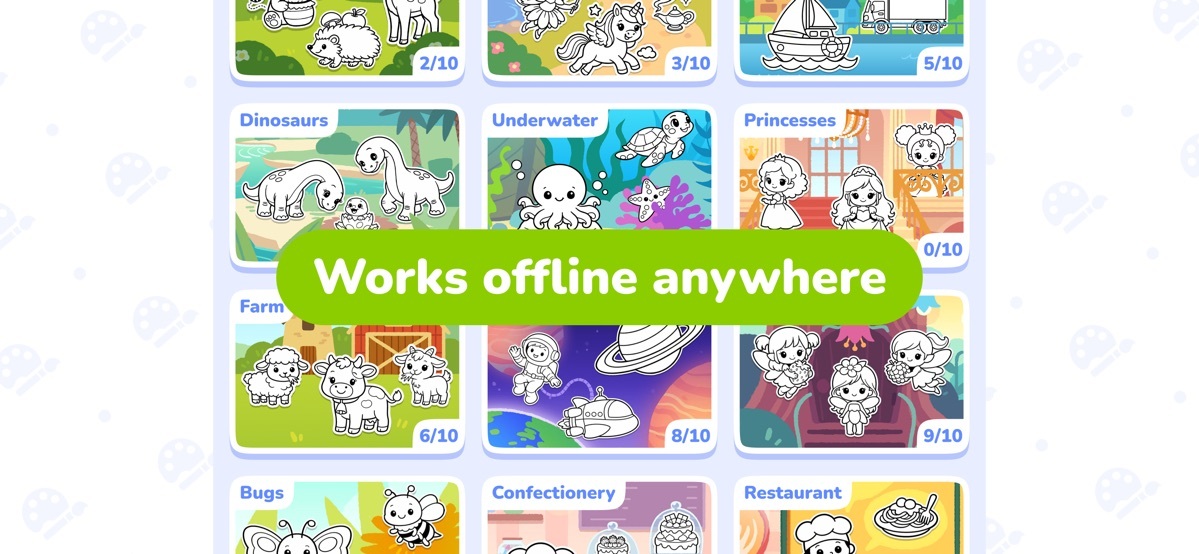
Bumi Lumi: Kids Coloring Games is a coloring app for children aged 2 to 5.
For a tablet, the useful part is that it is made for two to five year olds. It works without internet, including airplane mode, so the pages are there the moment your child decides it is time, and it is one place to try the checks above with your own tablet in hand.
Explore Bumi Lumi on the App Store and Google Play.
Questions parents ask
Should my child color on an iPad or on paper? Both, and they teach different motions. Paper gives drag and texture, a tablet gives a clean surface with nothing to scatter, and a household that uses both is not choosing between them.
Do I need an iPad, or does an Android tablet work as well? The checks are the same on either platform, and what matters is the app rather than the brand. If you are comparing the best coloring apps for android with the ones on an iPad, judge both the same way.
What if a coloring app keeps popping up prompts? Then the prompts are the thing to judge, because a page that keeps interrupting the coloring is not really about coloring any more. Look at where the app puts its requests, and whether a child can reach them by accident.
How do I know a coloring app really works with no internet? Download the pages, turn the connection off, and open the app. If the pages are still there, it works offline.
A shortlist you can test in one evening
You do not need to download twenty apps. Pick two or three, run the offline test on each, and watch your child's hands for ten minutes on each. The app where a small finger lands where it aims, where the coloring opens without a prompt, and where the pages are still there with the Wi-Fi off is the one to keep.
The best coloring apps for an iPad or an Android tablet, in the end, are the ones that disappear into the activity. When your child is coloring and you have stopped hearing about the tablet, the app has done its job.